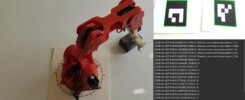
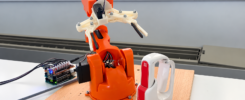
Monitor robot application status on an IoT dashboard using REST APIs. This guide uses SHAPE visual programming and ZION to show how an Arduino Braccio application can send status updates to a dashboard. Configure the connection, send a telemetry value and check that it appears in ZION.
What your IoT dashboard will show
You will connect a SHAPE application to a device in ZION and display the data it sends in an IoT dashboard. The Arduino Braccio example uses a movement status value to illustrate telemetry updates. Keep commanded positions separate from measured feedback: sending target coordinates to ZION does not confirm the robot’s actual position.
What you need for this project
- SHAPE installed and running.
- A ZION account with access to the device used in the example.
- An Arduino Braccio configured for control through SHAPE.
- A network connection between SHAPE and ZION.
- Permission to create or edit a dashboard in ZION.
Connect SHAPE to ZION
Open the ZION connection settings in SHAPE and sign in with your ZION credentials. Once connected, select the device that will receive your application data. SHAPE provides visual blocks to read and update telemetry, access device attributes and work with alarms. For this project, start with the telemetry update block.
Send application data to your IoT dashboard
Use the ZION telemetry update block to send a named value from your SHAPE application. In the documented Braccio exercise, the movement key represents the application’s movement status, using true and false values. Use the same key when configuring the dashboard widget in ZION, so it displays the data sent by SHAPE.
Display the data in ZION
In ZION, open a dashboard you can edit and add a widget suitable for displaying a Boolean status. Select the device receiving data from SHAPE and choose movement as the telemetry key. Run the SHAPE application, then check the device’s latest telemetry and the dashboard display. The widget represents the status reported by your application; it is not independent confirmation that the robot is physically moving.
Follow the SHAPE and ZION example
Follow the GitHub exercise to explore the SHAPE blocks used to update device telemetry in ZION. Use it alongside this guide to configure the application logic, then check that the telemetry key selected in your dashboard matches the key sent by SHAPE.
Explore our Arduino Braccio ROS 2 camera tracking guide to see another SHAPE robotics application.