
Install Tactigon SHAPE with Docker on Ubuntu and prepare your workspace for robotics and IoT development. This guide covers system requirements, installation steps and how to open the visual programming interface.
System requirements #
Before you begin, make sure your computer meets the following requirements:
| Component | Requirement |
|---|---|
| Operating system | Ubuntu 24.04 |
| Processor | CPU with AVX/FMA support |
| Memory | 8 GB RAM |
| Storage | 32 GB disk space |
| Software | Docker installed |
Planning to use Tactigon SKIN? You will also need Bluetooth Low Energy 5.0 or later. Bluetooth 5.3 is recommended.
For installation on Windows through Windows Subsystem for Linux, follow the dedicated WSL configuration instructions before continuing.
1. Download Tactigon SHAPE #
Open a terminal and clone the official GitHub repository:
git clone https://github.com/TactigonTeam/Tactigon-Shape.gitEnter the project directory:
cd Tactigon-ShapeThis directory contains the files needed to configure and launch SHAPE.
2. Configure your environment #
Move the .xprofile file included in the repository to your home directory:
mv .xprofile ~/Before running this command: if your home directory already contains a
.xprofilefile, back it up. Moving the supplied file may replace your existing configuration.
3. Start SHAPE with Docker #
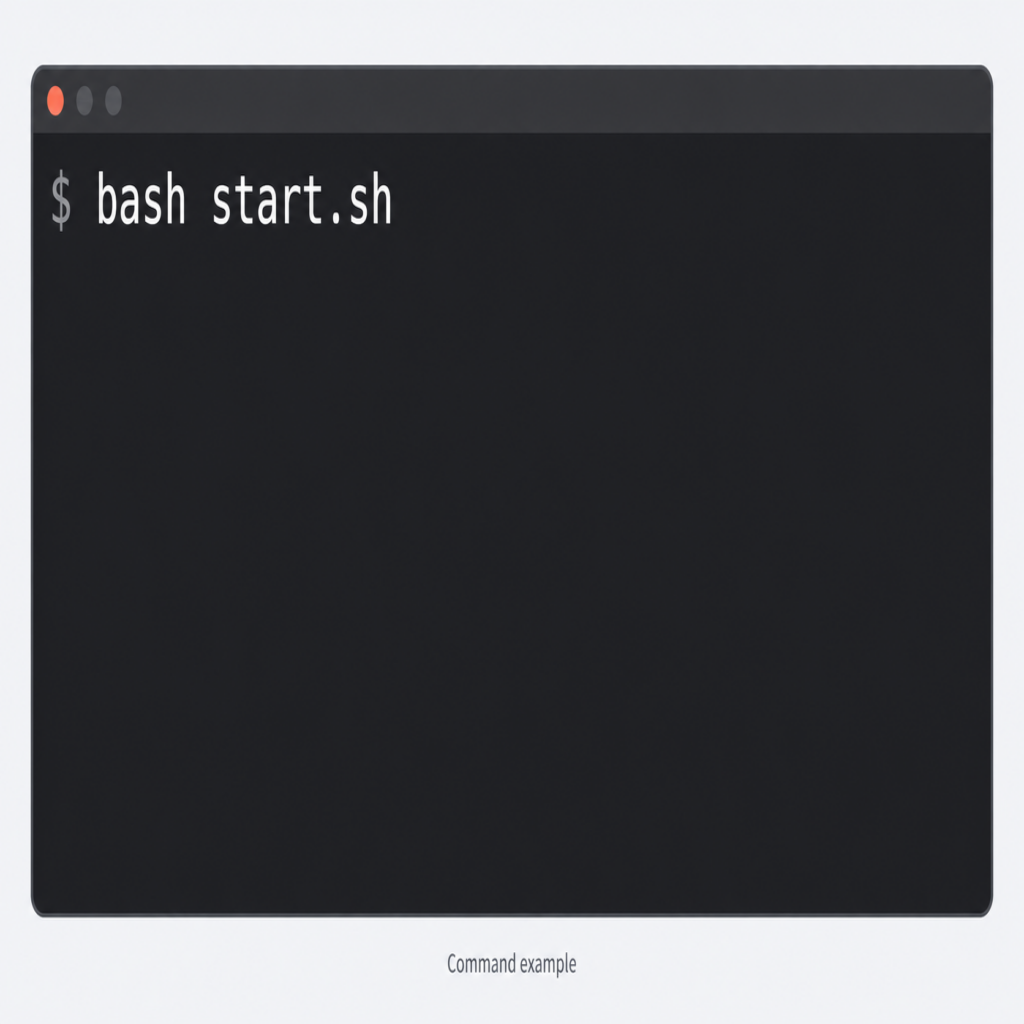
From the project directory containing docker-compose.yml, run:
bash start.shWait for the startup process to complete. Keep the terminal open so you can check its output during this step.
4. Open the SHAPE interface #
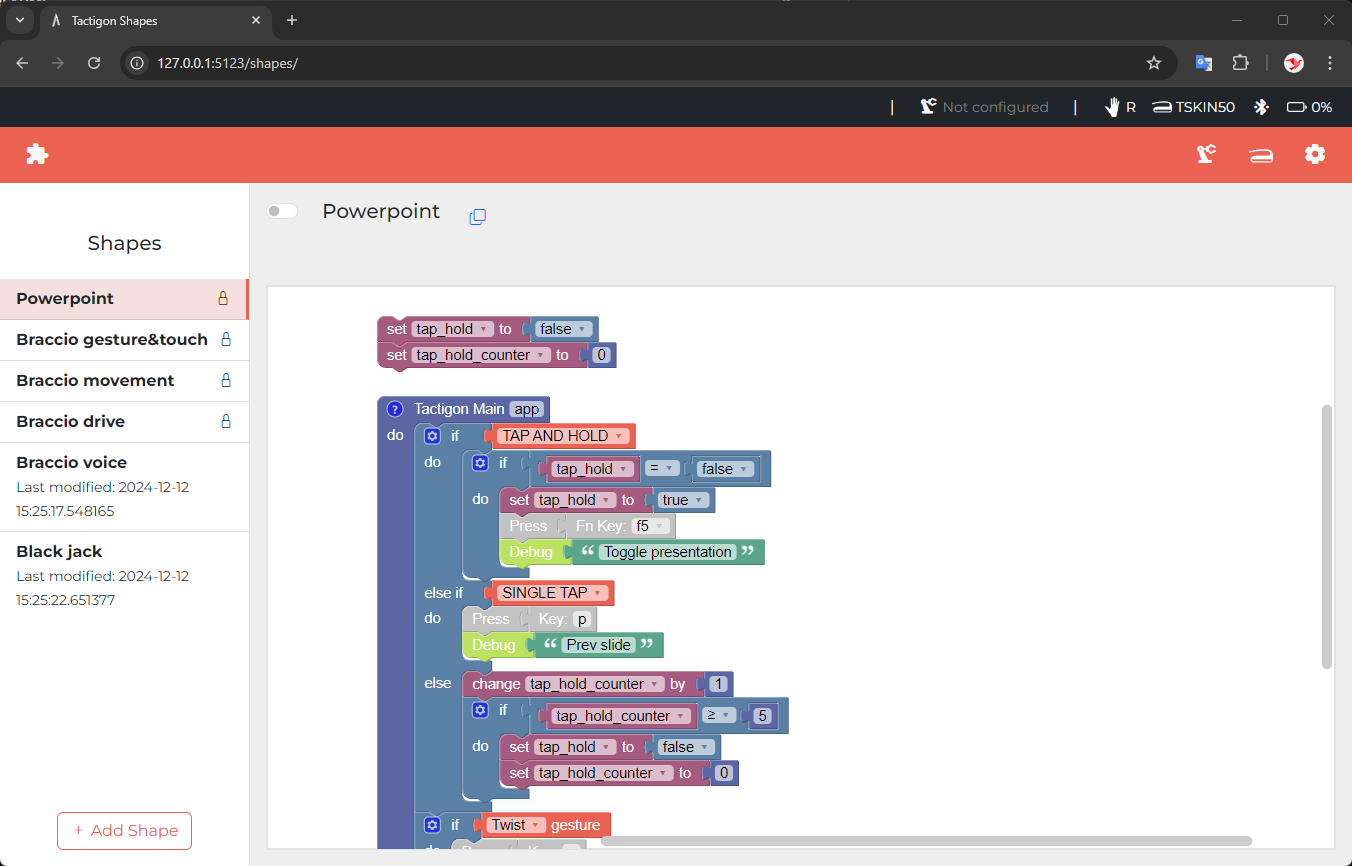
Tactigon SHAPE is configured to start automatically in your Docker environment.
On the computer running SHAPE, open your browser and visit:
http://0.0.0.0:5123You should now see the SHAPE interface, where you can access example projects and begin working with visual programming blocks.
Next steps: create your first Shape #
With the interface open, you are ready to build your first project.
Continue to Create your first Shape to learn how to add a project, connect blocks, save your work and run it.
Connect Tactigon SKIN #
If you are using Tactigon SKIN for gesture interaction, continue to Connect Tactigon SKIN. The guide explains how to find your device, select the hand on which you will wear it and check its battery level.
Source and technical documentation #
For the source code and additional technical instructions, visit the Tactigon SHAPE GitHub repository and the installation documentation.


