
Build your first project in Tactigon SHAPE using visual programming blocks. This guide explains how to create a Shape, connect blocks, save your work and run it to view the output.
Before you begin #
Make sure Tactigon SHAPE is installed and its interface is open in your browser.
If you have not completed the installation, start with Install SHAPE with Docker
1. Create a new Shape #
From the SHAPE interface:
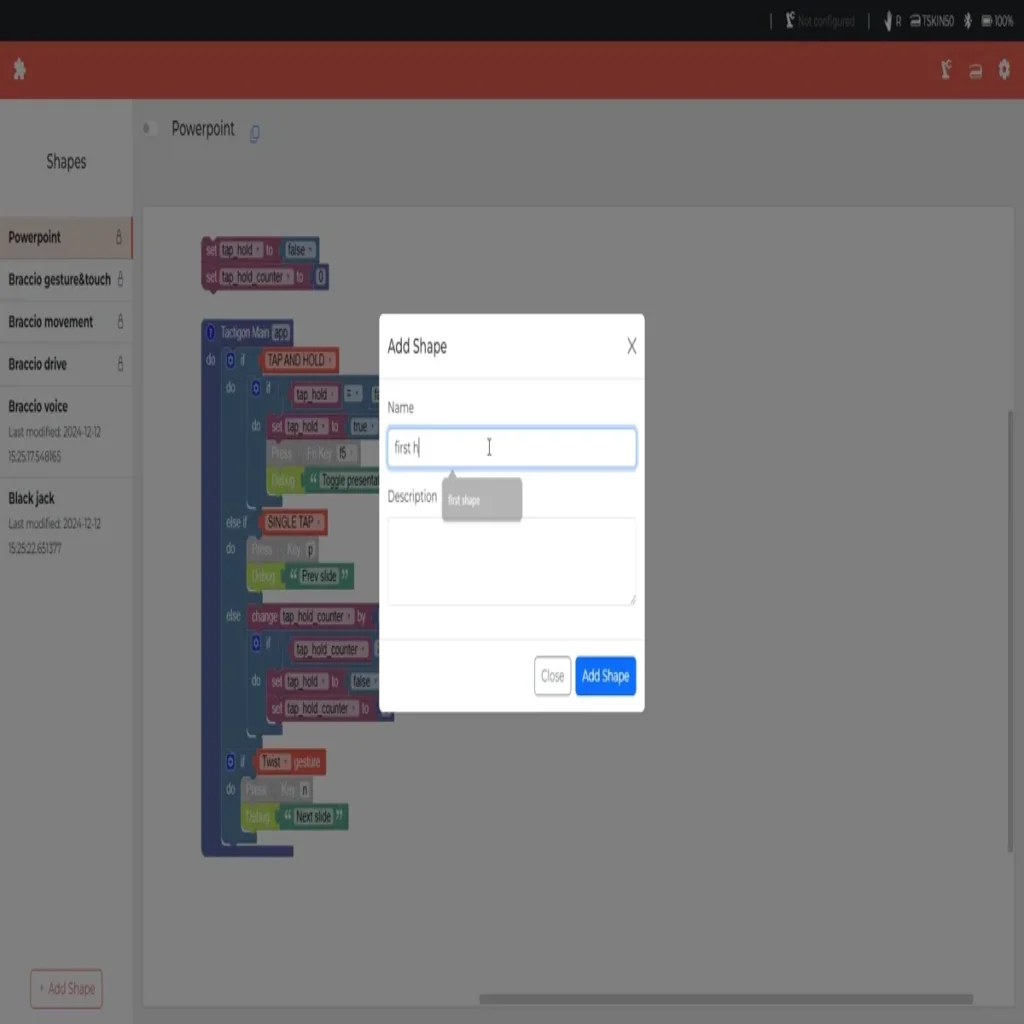
- Click Add Shape.
- Enter a unique name and a description for your project.
- Confirm the creation of your Shape to open the editing workspace.
Choose a name that makes the project easy to recognise when you return to it.
2. Connect your programming blocks #
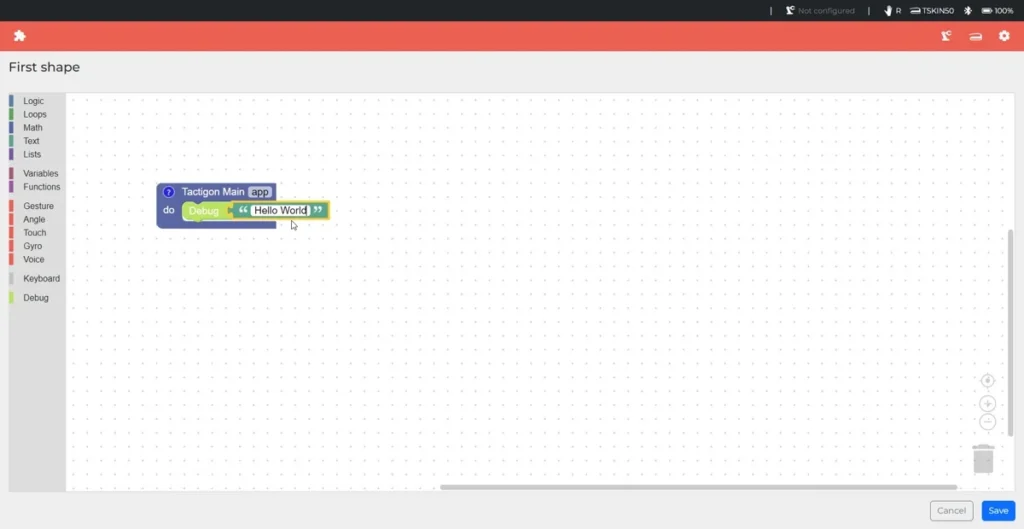
In the editing workspace, drag blocks from the panel on the left into the working area.
Connect the blocks to build your program’s logic. Depending on the block, you can place another block underneath it or inside an available space.
Make sure the blocks snap together. Disconnected blocks will not execute as part of the connected program.
3. Save your Shape #
Click Save to store your changes.
Save your work after building or modifying the program so you can return to it later.
4. Run your Shape #
Use the toggle button to run your Shape.
The execution page displays your Shape alongside a terminal showing the program’s output. Use this view to observe what happens when your program runs.
5. Edit an existing Shape #
To return to a saved project:
- Select your Shape from the homepage.
- Click Edit Code.
- Modify the blocks in the workspace.
- Click Save to store your changes.
You can then run the Shape again to observe the updated behaviour.
Next steps #
Continue with the guide that matches your project:
- Connect Tactigon SKIN — configure your wearable for gesture interaction.
- MQTT communication with SHAPE — explore messaging for connected applications.
- Getting started with ROS 2 — explore ROS 2 integration.
Source and technical documentation #
These instructions follow the official Tactigon SHAPE documentation.


