
Connect visual programming to ROS 2 with Tactigon SHAPE. This guide introduces the communication concepts used in robotic applications and walks you through a first check: publishing a text message from SHAPE and reading it in a terminal.
The goal is to understand the path from a visual block to a ROS 2 topic before moving on to more advanced integrations.
What is ROS 2? #
ROS 2 provides libraries and tools for building robotic software. It runs on top of a host operating system and helps different software components exchange information.
For example, a camera component can produce data that another component uses to make decisions. ROS 2 provides communication mechanisms for connecting those responsibilities.
Nodes, topics and messages #
Three concepts are useful for this first example:
| Concept | Meaning |
|---|---|
| Node | A software component responsible for a task |
| Topic | A named communication channel |
| Message | The typed data exchanged through a topic |
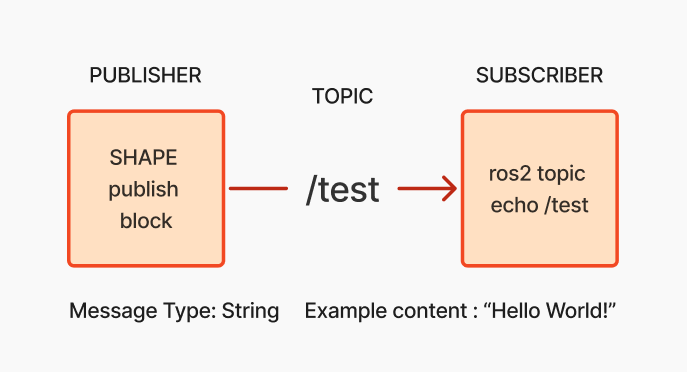
A publisher sends messages to a topic. A subscriber receives messages from that topic. In the example below, SHAPE publishes text to /test, while a terminal command subscribes to that topic.
How SHAPE uses Vulcanexus #
The documented SHAPE environment uses Vulcanexus, a ROS 2 distribution from eProsima that includes Fast DDS and development tools.
This guide follows the Docker route. The terminal commands use the documented Jazzy environment.
Before you begin #
Complete Install SHAPE with Docker, start the application and open its interface.
If you are unfamiliar with the visual editor, follow Create your first Shape before continuing.
You will work in two places: the SHAPE editor to publish the message, and a terminal to inspect it.
1. Prepare the publishing blocks #
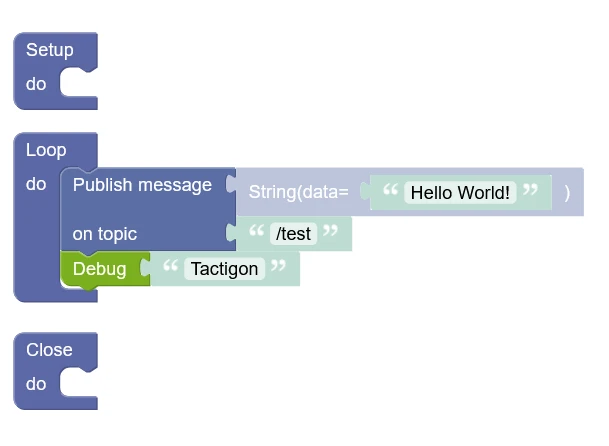
Use the configuration shown in the example screenshot:
- Place the Publish message block inside Loop.
- Select a String message.
- Enter
Hello World!as its content. - Set the topic to
/test.
Save your Shape. You will run it after preparing the subscriber.
The topic name identifies the channel; the String message carries the text. Keep the topic consistent between the visual block and the terminal command.
2. Enter the Docker container #
Open a terminal on the computer running SHAPE:
docker exec -it tactigon-shapes bashThis opens a shell inside the running application container.
3. Activate the ROS 2 environment #
Inside the container, run:
source /opt/vulcanexus/jazzy/setup.bashFor this String example, continue to the next step. Custom message packages, such as those used by camera tracking, require additional build and environment setup.
4. Listen to the topic #
Run:
ros2 topic echo /testThen return to SHAPE and run the saved project.
Check the result #
The terminal should display the messages published on /test, including the text Hello World!.
This gives you a direct way to inspect the data sent by your visual program.
Next step #
Continue to ROS 2 blocks in Tactigon SHAPE to explore publishing, subscription and discovery blocks in more detail.
For the underlying technical reference, see the official ROS 2 integration documentation.


