
Connect Tactigon SHAPE to CHORDS, upload a document and use visual blocks to request a summary of its contents.
CHORDS uses Ollama with the Mistral language model running on a VPS. The intended deployment provides a dedicated VPS for each customer or lab. Use the service URL and credentials supplied for your environment.
What you will build #
This example creates a workflow that:
- Uploads a selected file to the chat documents.
- Starts document preparation with Execute RAG.
- Waits until the RAG agent reports IDLE.
- Sends a request to summarise the document.
- Displays the response and stops the Shape.
Before you begin #
You will need:
- A running installation of Tactigon SHAPE.
- Access to an active CHORDS service.
- Your CHORDS username, password and service URL.
- A document whose contents you can check against the generated summary.
If SHAPE is not installed, follow Install SHAPE with Docker.
For your first test, use a short document with clearly identifiable information. The supplied example uses a file named Informatica2.pdf.
1. Connect SHAPE to CHORDS #
Open the LLM configuration using the musical-note icon in the top-right corner of the SHAPE interface.
Enter your connection details:
| Field | Value |
|---|---|
| Username | Your CHORDS account username. |
| Password | Your CHORDS account password. |
| Url | The CHORDS service URL provided for your environment. |

Click Save.

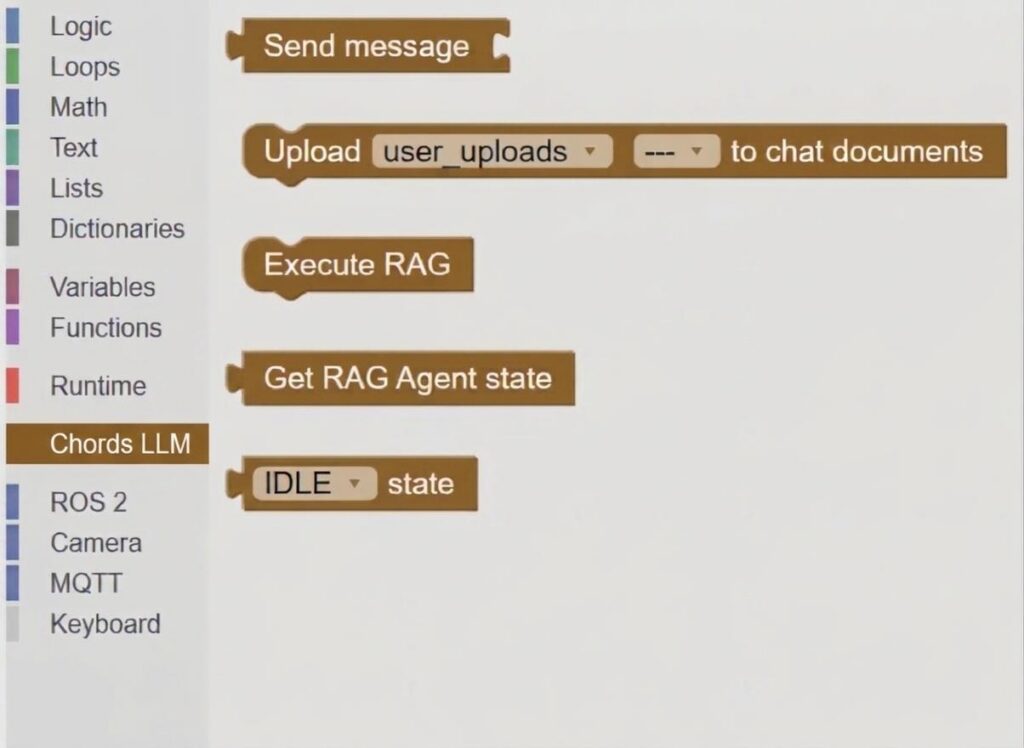
Check that the Chords LLM category is available in the block toolbox.
2. Create a Shape #
Create a new Shape and complete its name and description.
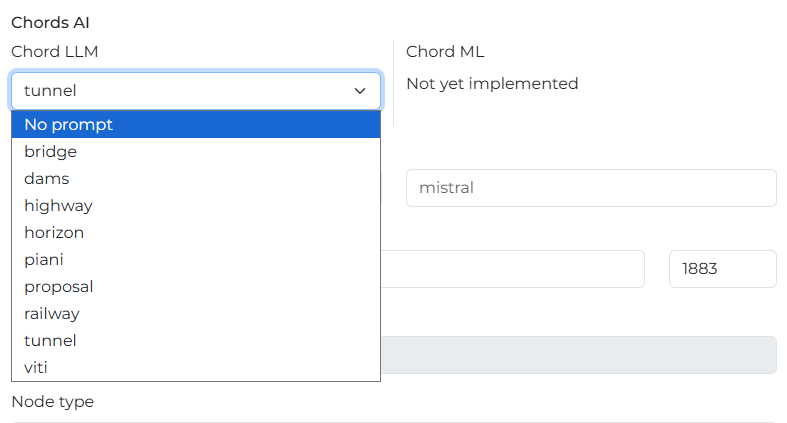
The creation screen includes a Chord LLM selector. Choose the prompt configuration appropriate to your task and available in your environment, then click Create Shape.
The configurations shown in the screenshot are examples from the documented environment; your available options may differ.
3. Add your document #
Click the folder icon in the top-right corner of the interface and upload the document you want to use.
Note its filename: you will select the file in the workflow and refer to it in your request.

4. Prepare the document in Setup #
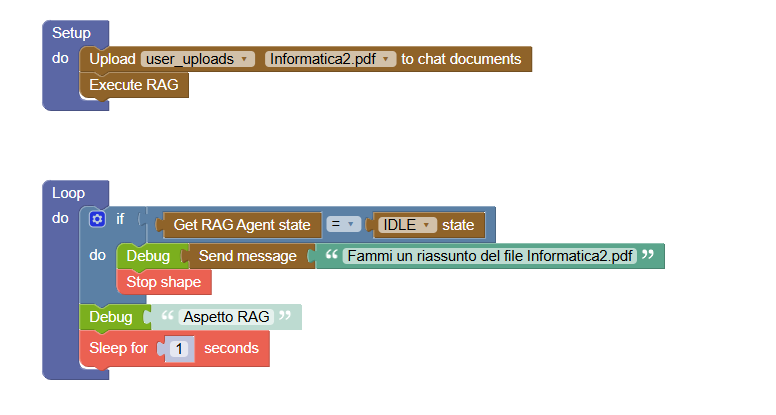
From Chords LLM, add these blocks inside Setup, in this order:
| Block | Configuration |
|---|---|
| Upload … to chat documents | Select user_uploads and your uploaded filename. |
| Execute RAG | Place it immediately after the upload block. |
In the supplied example, the selected filename is Informatica2.pdf. Replace it with your own file.
This step adds the selected document to the chat documents and starts its preparation for document-based questions.
5. Wait for readiness and request a summary #
Inside Loop, reproduce the following logic:
- Add an if condition.
- Compare Get RAG Agent state with IDLE state.
- Inside the condition, connect Send message to Debug.
- Enter a summary request that names your document.
- Place Stop shape immediately after the response block, inside the same condition.
For the example filename, use:
Summarise the document Informatica2.pdf in five bullet points.
Use only information found in the document.
Replace Informatica2.pdf if you uploaded a different file.
After the if block, add:
- Debug with a waiting message, such as
Waiting for document preparation. - Sleep for 1 seconds.
This follows the structure of the supplied example: the Shape checks the agent state repeatedly and sends the request when the condition is met.
6. Save, run and inspect the response #
Save your Shape and start it.
Watch the output terminal. Depending on the processing state, waiting messages may appear before the generated response.
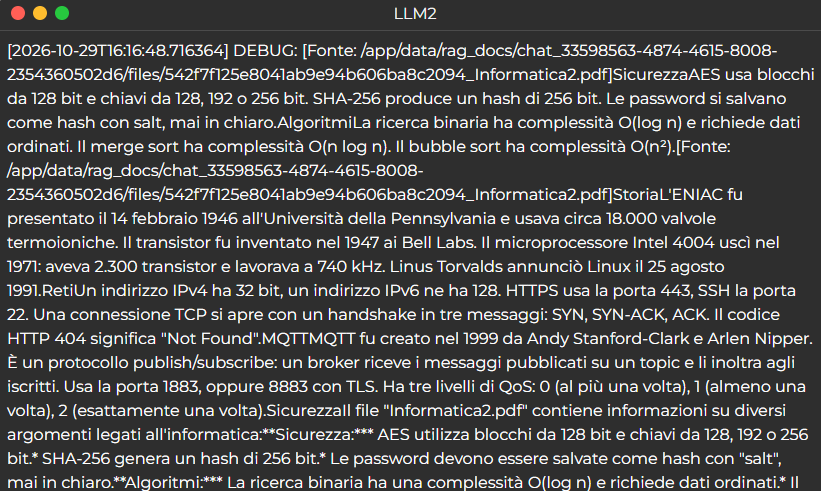
When the agent reports IDLE, the workflow sends your request, displays its response through Debug and reaches Stop shape.
For help with the basic execution controls, see Create your first Shape.
7. Check that the example worked #
Check all three outcomes:
- A response appears in the output terminal.
- Its contents correspond to the uploaded document.
- The Shape stops after displaying the response.
Compare the summary with the original file. Confirm that its main statements are supported by the document.
Generated wording may vary, and the model may not follow the requested format exactly. Review the content rather than expecting an identical response to the screenshot.
The supplied output includes source references. Where references are returned, use them to help check the answer against the document.
Troubleshooting #
| Issue | What to check |
|---|---|
| CHORDS connection fails | Check the service URL, credentials and service availability. |
| The document cannot be selected | Confirm that it was uploaded and check its filename in the upload block. |
| Waiting messages continue without a response | Check the RAG agent state and service logs for processing errors. |
| No answer appears in the terminal | Check the IDLE condition and the connection between Send message and Debug. |
| The Shape does not stop after the response | Check that Stop shape is inside the condition, immediately after the response block. |
| The summary contains unsupported information | Compare it with the document and any returned references. Do not treat generated text as automatically verified. |
Next steps #
Repeat the workflow with another short document. Update both the file selected in Setup and the filename in your request.
You can also replace the summary request with a specific question about the document, then check the answer against its contents.


