Use MQTT blocks in Tactigon SHAPE to receive messages from external applications and publish data from your visual program.
This reference explains the fields of the reception and publication blocks, how topics connect publishers with subscribers, and how to approach structured payloads.
For a practical walkthrough, start with Receive Your First MQTT Message in Tactigon SHAPE or Send MQTT Messages from Tactigon SHAPE.
Before you begin #
Configure the MQTT broker in your Shape before using the blocks.
The tutorials use the public EMQX broker:
| Setting | Value |
|---|---|
| Broker address | broker.emqx.io |
| Port in SHAPE | 1883 |
Your external client must connect to the same broker. MQTTX Web uses a different connection transport, as explained in the reception tutorial.
Use demonstration data only on the public broker.
Choose the right MQTT block #
| Your goal | Block to use |
|---|---|
| Run logic when an external message arrives | Message reception |
| Send a message to another application | Message publication |
SHAPE can act as both a publisher and a subscriber. These roles describe what the program does with a message, rather than two different application types.
Receive data with MQTT blocks #
The reception block listens for messages on a specified topic. When a message arrives, the blocks inside its do section execute.
Configure the reception fields #
| Field | Purpose |
|---|---|
| On message from | The topic to subscribe to |
| get values in | The variable that receives the incoming payload |
| do | The logic to execute when a message arrives |
In the documented example, the topic is:
shape/inputThe received data is assigned to a variable named:
payload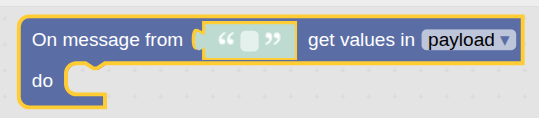
Place a Debug block inside do and connect it to payload to inspect the received content.
For the complete exercise, follow Receive Your First MQTT Message in Tactigon SHAPE.
Publish data with MQTT blocks #
The publication block sends a payload to a topic through the configured broker.
Configure the publication fields #
| Field | Purpose |
|---|---|
| publish payload | The content to send |
| on topic | The destination topic |
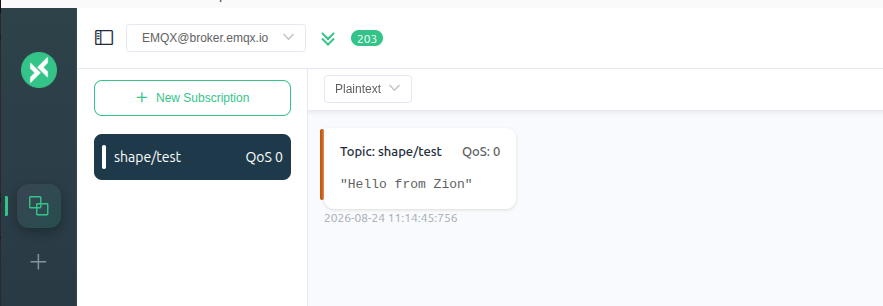
The original example uses:
Payload: Hello from Zion
Topic: shape/test
The publication block is placed inside Setup. When that part of the program executes, it publishes the configured message.
An external client subscribed to shape/test can then receive it.
Follow Send MQTT Messages from Tactigon SHAPE to reproduce the example and inspect the result in MQTTX.
Understand topics and payloads #
The topic identifies the communication channel. The payload contains the message.
For example:
| Element | Example |
|---|---|
| Topic | shape/input |
| Payload | {"temperatura": 40} |
To reproduce the reception example, publish the payload on the same topic that SHAPE subscribes to.
Topic names must match exactly, including letter case. A subscriber listening on shape/input will not receive messages published only on shape/test.
Work with structured payloads #
JSON represents structured data using named fields. For example:
{
  "temperatura": 40
}
When the received payload is available as a dictionary, use Get item to retrieve a field such as temperatura.
Get item operates on the dictionary; it is not a replacement for parsing JSON text. Inspect the received payload before building logic that depends on its fields.
For outgoing data, the documentation describes using jsonify to convert a dictionary into JSON before publication. This is useful when the receiving application expects a structured JSON message rather than plain text.
Check your MQTT configuration #
If communication does not behave as expected, check:
- Both clients connect to the same broker.
- The publication topic matches the subscription topic.
- The receiving Shape is running before the test message is sent.
- Reception logic is inside the do section.
- The publication block belongs to executable program logic.
- The payload format matches what the receiving application expects.
On a shared public broker, other users may use the same topic names. Choose distinctive names for your own tests and update both clients consistently.
Try the practical tutorials #
Choose the direction you want to test:
- Receive Your First MQTT Message in Tactigon SHAPE — send sample data from MQTTX into SHAPE.
- Send MQTT Messages from Tactigon SHAPE — publish from your visual program and inspect the result in MQTTX.
instead, if you want to use ChordLLM, go to the Start-up guide for ChordLLM
For the original block examples, see the official SHAPE MQTT documentation.